Set up your group

These are the instructions to get your group ready and start using PokeGol. Follow each step carefully.

Once your group is activated, you will find each option inside PokeGol. Below we show you what to do step by step.

1

Link your WhatsApp

The first thing to do is link your WhatsApp account inside PokeGol. This way the app can show the groups you belong to and manage your soccer.

Steps to follow

  • Open PokeGol and go to your profile.
  • Find the «Link WhatsApp» option.
  • Follow the on-screen instructions to authorize access.
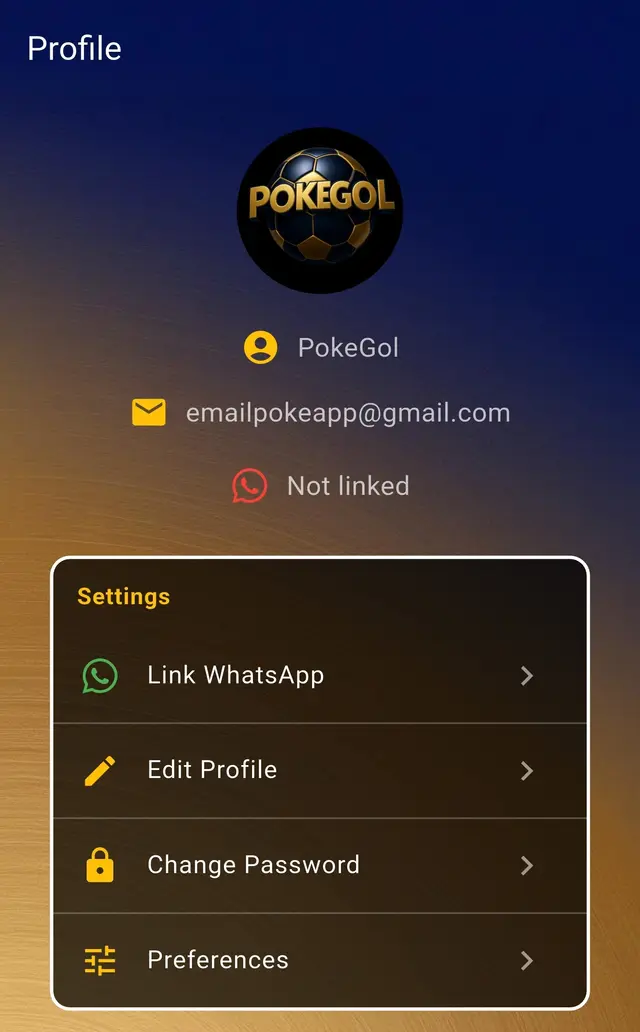
WhatsApp linking screen in PokeGol
2

View your groups

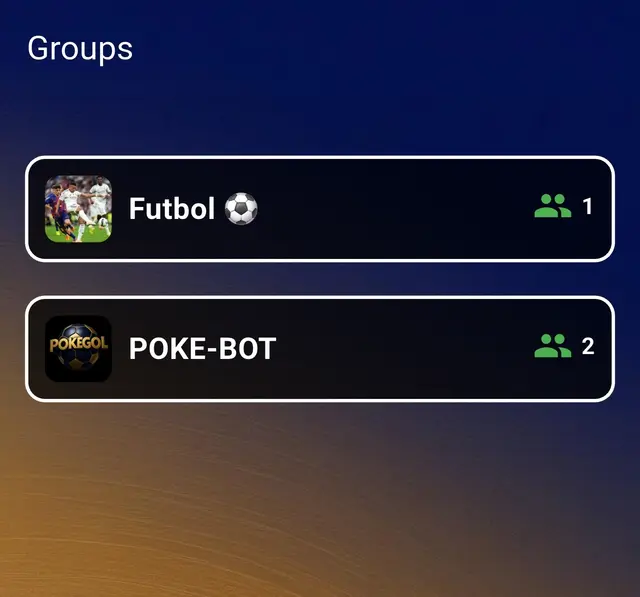
Once linked, go to the «Groups» option. There you will see all the groups you belong to that use PokeGol.

What you will see

  • The list of your active PokeGol groups.
  • Access to each group's features to organize games.
PokeGol groups screen
3

Access your groups

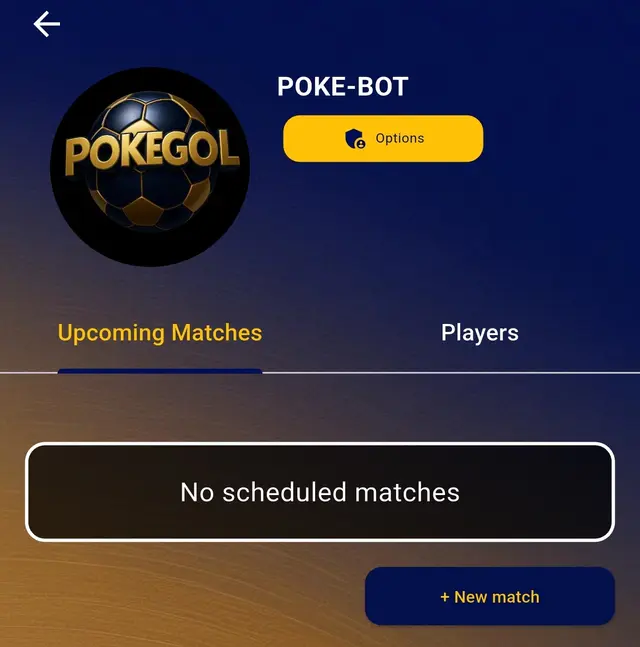
Go into each of your groups to see everything related to them. Here is the key information to stay up to date.

What you will find

  • General group information.
  • Upcoming scheduled games.
  • Players who belong to the group.
PokeGol group screen
4

Manage your group

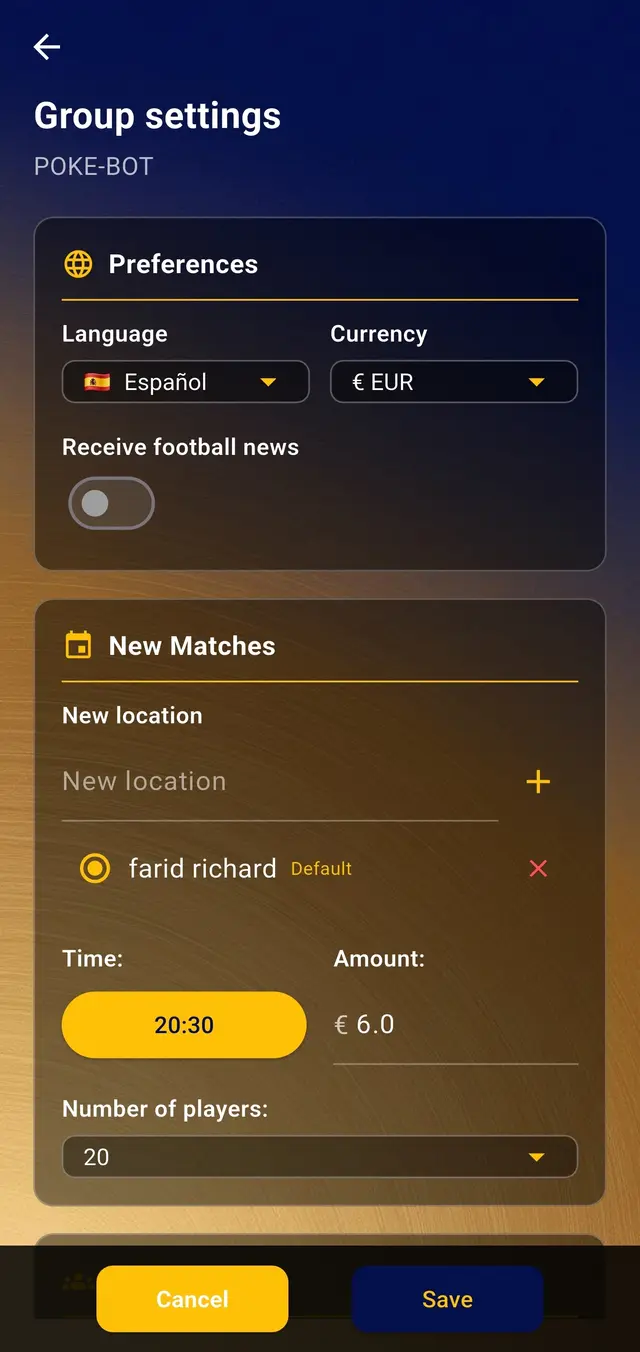
WhatsApp group administrators will be able to enter PokeGol and manage the group from the «Options» button.

What you can configure

  • Language and currency preferences.
  • Receive soccer news in the WhatsApp group.
  • Default settings for new games.
  • Add locations and a default time.
  • Other default settings, such as the color of the teams' shirts.
Group administration options screen
5

Create your first game

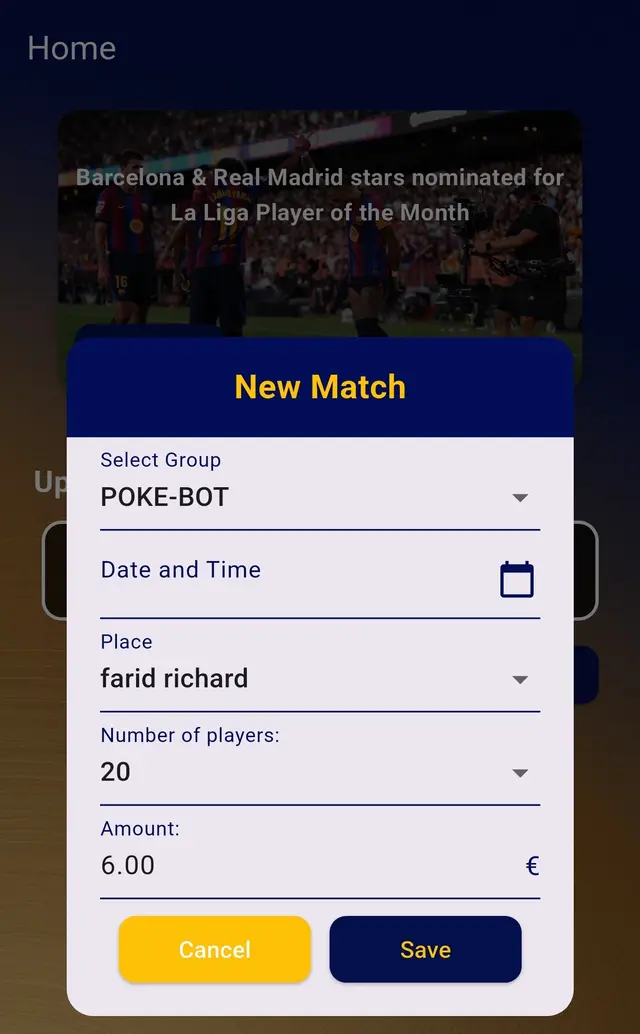
Once you have finished setting up your group, you can create the first call-up and start organizing your games.

What you will be able to do

  • Create your group's first call-up.
  • Invite the group's players and manage confirmations.
  • Set the date, time and location of the game.
Screen to create a new game in PokeGol

Have questions? Write to us and we'll help you get your group ready.